Showing posts with label on. Show all posts
Thursday, May 15, 2014
Tuesday, November 19, 2013
Sunday, November 17, 2013
Monday, November 11, 2013
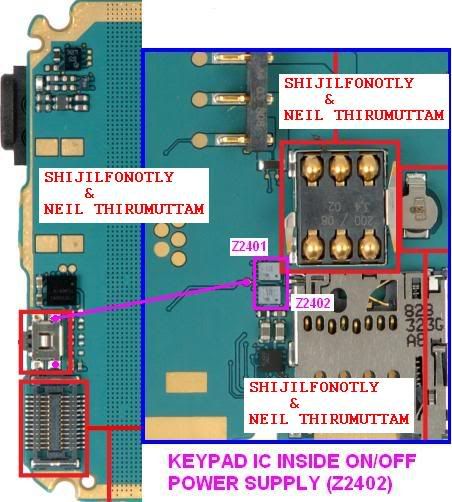
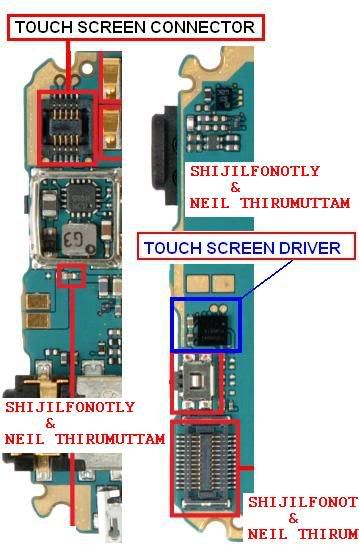
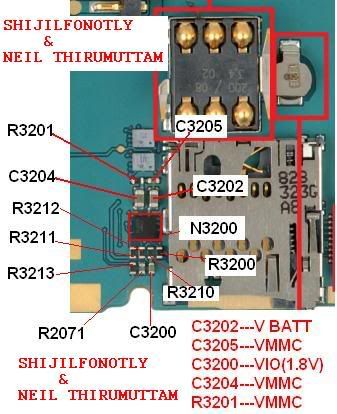
NOKia 1202 1203 1661 1662 Power Switch On Off Solution Ways

Friday, November 1, 2013
USA Verizon Wireless added on HTI ONLINE SERVICES iPhone Unlock
!!! CAUTION !!!
YOU MUST DOWNLOAD AND INSTALL NEW VERSION
MXBOX v3.5 revision 2.4
ONLY THIS VERSION HAVE NEW CARRIERS
OLD VERSION WILL NOT HAVE NEW ADDED CARRIERS IN THE LIST
WHAT IS NEW:
iPhone Factory Unlock added more carriers:
USA Verizon Wireless
Features:
You need to have HTI Credits to be able to submit jobs.
Activation cost:
- No activation required
Description:
- Factory Unlock for your iPhone
Credit consumption policy by carrier:
CHECK WITH YOUR HTI ONLINE SERVICES SOFTWARE
Time for unlocking:
CHECK WITH YOUR HTI ONLINE SERVICES SOFTWARE
Refund policy:
- if phone was not able to be unlocked, your credits will be refunded
- if phone was added to wrong carrier, your credits will NOT be refunded
(to avoid wrong carrier, use IMEI Check services)
- NEW OPTION ADDED: CANCEL JOB
If you submit IMEI twice by mistake, you can cancel your job also by* the consumption and time are for reference only and
can be changed any time without notification,
you have to check every time before you upload a job
YOU MUST DOWNLOAD AND INSTALL NEW VERSION
MXBOX v3.5 revision 2.4
ONLY THIS VERSION HAVE NEW CARRIERS
OLD VERSION WILL NOT HAVE NEW ADDED CARRIERS IN THE LIST
WHAT IS NEW:
iPhone Factory Unlock added more carriers:
USA Verizon Wireless
Features:
You need to have HTI Credits to be able to submit jobs.
Activation cost:
- No activation required
Description:
- Factory Unlock for your iPhone
Credit consumption policy by carrier:
CHECK WITH YOUR HTI ONLINE SERVICES SOFTWARE
Time for unlocking:
CHECK WITH YOUR HTI ONLINE SERVICES SOFTWARE
Refund policy:
- if phone was not able to be unlocked, your credits will be refunded
- if phone was added to wrong carrier, your credits will NOT be refunded
(to avoid wrong carrier, use IMEI Check services)
- NEW OPTION ADDED: CANCEL JOB
If you submit IMEI twice by mistake, you can cancel your job also by* the consumption and time are for reference only and
can be changed any time without notification,
you have to check every time before you upload a job
Saturday, October 26, 2013
Tuesday, October 22, 2013
HOW TO FIX YOUTUBE VIDEO STOPS STREAMING WHEN SCREEN LOCKED On GOOGLE NEXUS 7
Once upgrading your Nexus 7 to Android 4.1.2, you may have some issues with the YouTube app, one of which is the video stops streaming when the screen is locked.
Usually, if you have a good network, then you wouldnt have a problem watching YouTube videos. But if the data network is slow, then you may pause the video waiting for it to buffer more data. However, while the video is pausing, your phone may go into idle mode and the screen is locked, at that point YouTube will just stop streaming. So to watch the video you will to download it again.

The answer is yes. All you need to do is extending the Lock screen time out, set the time period of 5-10 minutes. But if you don’t want to increase the time period for personal reason, then you will need to use third party app to help you deal with this.
Heres how to:
1. First, press the Home key to return to your Nexus 7’s Home screen.
2. Launch Google Play Store app.
3. Find and install the KeepScreen app.
- KeepScreen app will help you block the screen timeout with some selected apps that can be activated. This app is great if you would like to stream content while playing, too.
Just in case you want to extend the Lock screen Time out, go to Settings > Security. Then feel free to adjust the timeout period that you are comfortable with.
Friday, October 18, 2013
Tuesday, October 1, 2013
Saturday, September 28, 2013
Sonyericsson xperia x10 no light on Lcd Solution

Xperia X10 Lcd Light Problem Solution
Wednesday, September 25, 2013
Fix Youtube app not working on Nexus 7
There are times you may find that the YouTube app having some issues on the Nexus 7. If you try to play one of thevideos, you will see the app get stucked. An error message appears on screen saying "There was a problem while playing this video. Touch to retry". However, no matter what you try, the error wont go away. So, how do you fix this issue? Just try one of these solutions below to see if it works:1. First, check to ensure you have installed Adobe Flash or not. You may need to install Firefox instead of using Chrome. After the installation of these two, you can see the mobile version of YouTube site works fine withFirefoxbeta.
2. Try to clear cache or any data of YouTube app in the settings, then soft reset Nexus 7.
3. If these two options does not work, you will need the help from other apps:
- First, tap on the Home key to return to your Nexus 7’s Home screen.
- Launch Google Play Store app.
- Next, search and install Titanium Backup from Google Play Store on your Nexus 7 tablet.
- Launch the app.
- Press the Backup/Restore tab at the top of the screen.
- Then find and select the YouTube app.
- Finally, hit the Wipe data key.
Tuesday, September 24, 2013
Fix Youtube app not working on Nexus 7
There are times you may find that the YouTube app having some issues on the Nexus 7. If you try to play one of thevideos, you will see the app get stucked. An error message appears on screen saying "There was a problem while playing this video. Touch to retry". However, no matter what you try, the error wont go away. So, how do you fix this issue? Just try one of these solutions below to see if it works:1. First, check to ensure you have installed Adobe Flash or not. You may need to install Firefox instead of using Chrome. After the installation of these two, you can see the mobile version of YouTube site works fine with Firefoxbeta.
2. Try to clear cache or any data of YouTube app in the settings, then soft reset Nexus 7.
3. If these two options does not work, you will need the help from other apps:
- First, tap on the Home key to return to your Nexus 7’s Home screen.
- Launch Google Play Store app.
- Next, search and install Titanium Backup from Google Play Store on your Nexus 7 tablet.
- Launch the app.
- Press the Backup/Restore tab at the top of the screen.
- Then find and select the YouTube app.
- Finally, hit the Wipe data key.
Sunday, September 8, 2013
Fix Youtube app not working on Nexus 7
There are times you may find that the YouTube app having some issues on the Nexus 7. If you try to play one of thevideos, you will see the app get stucked. An error message appears on screen saying "There was a problem while playing this video. Touch to retry". However, no matter what you try, the error wont go away. So, how do you fix this issue? Just try one of these solutions below to see if it works:1. First, check to ensure you have installed Adobe Flash or not. You may need to install Firefox instead of using Chrome. After the installation of these two, you can see the mobile version of YouTube site works fine with Firefoxbeta.
2. Try to clear cache or any data of YouTube app in the settings, then soft reset Nexus 7.
3. If these two options does not work, you will need the help from other apps:
- First, tap on the Home key to return to your Nexus 7’s Home screen.
- Launch Google Play Store app.
- Next, search and install Titanium Backup from Google Play Store on your Nexus 7 tablet.
- Launch the app.
- Press the Backup/Restore tab at the top of the screen.
- Then find and select the YouTube app.
- Finally, hit the Wipe data key.
Subscribe to:
Posts (Atom)